> ## Documentation Index
> Fetch the complete documentation index at: https://docs.fieloloyalty.com/llms.txt
> Use this file to discover all available pages before exploring further.
# Caps
A cap defines a periodic limit to the number of times a member can be rewarded for a certain kind of activity in the program. When a member exceeds a cap, the member's status changes to *Resolved-BlockAccruals*, meaning he or she is blocked from further accruals.
### Add a Cap
To configure a cap, navigate to the Caps page and select **Create Cap**. In addition to a name and description, caps have the following attributes:
* *Suspension Mode (hours)*: **Temporary** means that, when a member is blocked due to exceeding a cap, the suspension will be automatically lifted after a defined number of hours, while **Indefinite** means that the member's suspension will need to be removed administratively.
* *Suspension Time*: When the suspension mode is temporary, this is the amount of time (in hours) that the member will be blocked.
* *Limit*: Required. The number of activities a member can perform inside the measurement period before being blocked.
* *Measurement Period (hours)*: The rolling period inside which the limit will be measured. For example, if the value is `5`, members will be blocked if they exceed the limit by the number of scoped activities they've performed within the last 5 hours. If the measurement period is blank, the limit applies over the lifetime of the program.
### Define a Scope
Once a cap has been created, you can set its scope. The scope defines the kind of activities that will fall under a given cap. Caps are scoped by [Data Set](/build/datasets).
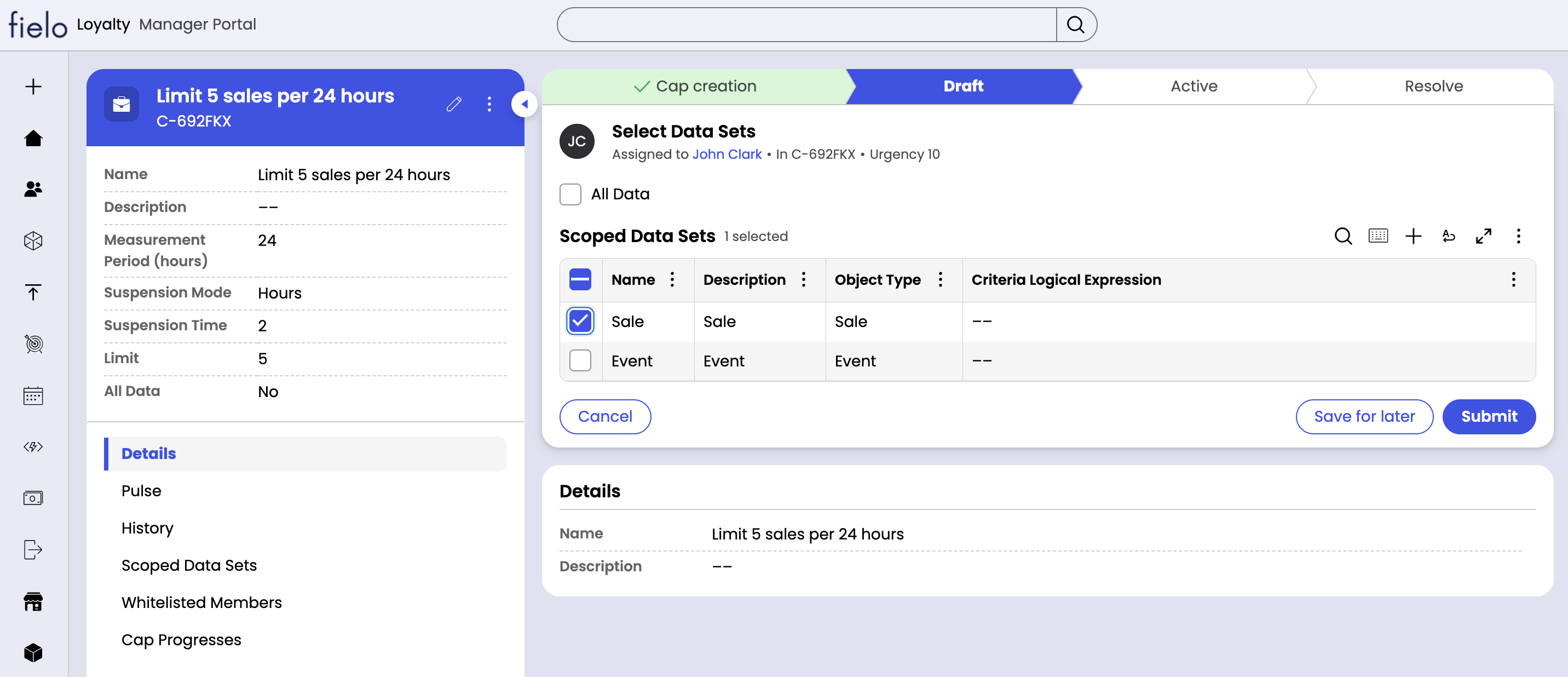 You can select one or more data sets, or choose *All Data* if the cap will be applied across all activities inside the program. When you're ready, be sure to confirm your selection by clicking "Submit".
### Whitelist
There may be a handful of members you wish to exclude from your cap. If this is the case, you can add them to the whitelist now or at any time in the future. Continue by selecting "Submit".
### Activate a Cap
Once you've set the policies, defined a scope and, optionally, added members to the whitelist, you can go ahead and activate your cap.
You can select one or more data sets, or choose *All Data* if the cap will be applied across all activities inside the program. When you're ready, be sure to confirm your selection by clicking "Submit".
### Whitelist
There may be a handful of members you wish to exclude from your cap. If this is the case, you can add them to the whitelist now or at any time in the future. Continue by selecting "Submit".
### Activate a Cap
Once you've set the policies, defined a scope and, optionally, added members to the whitelist, you can go ahead and activate your cap.
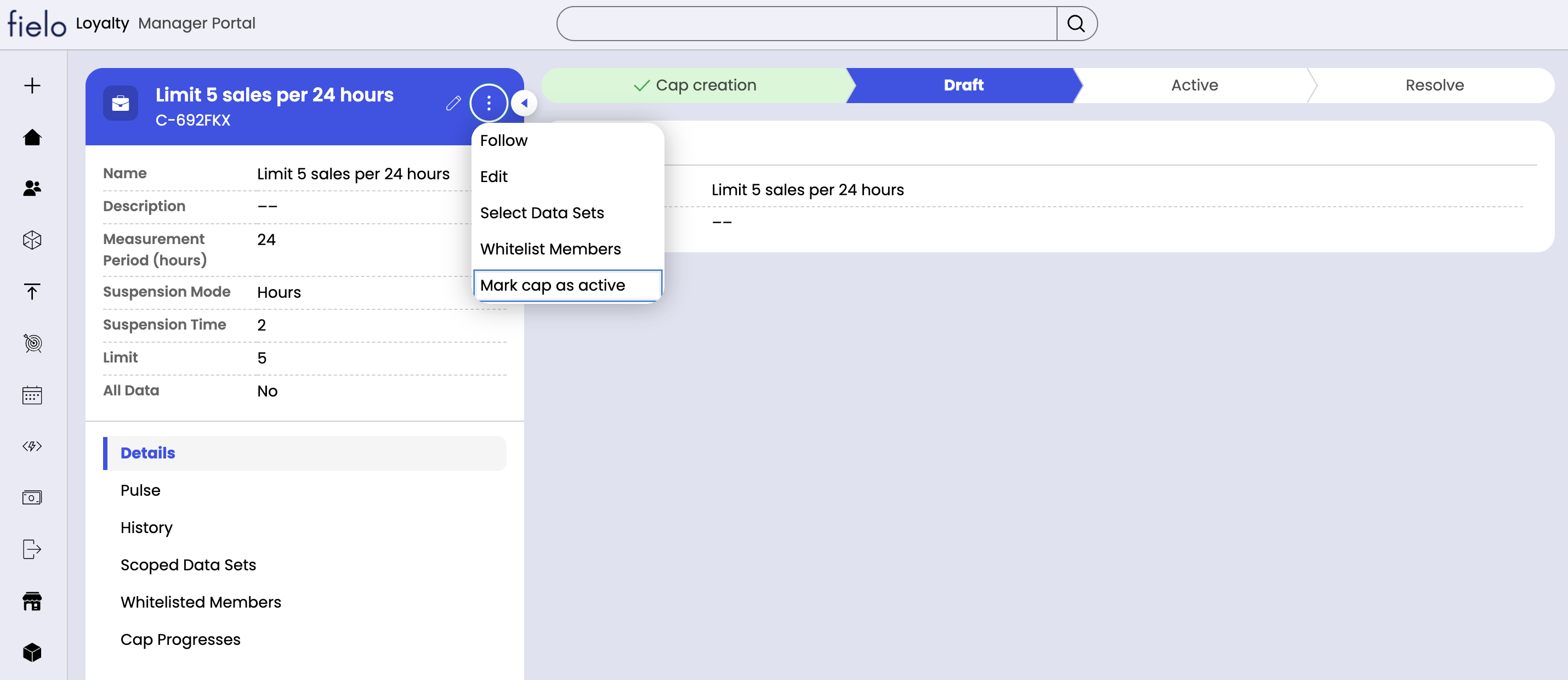 From the three-dot menu, choose "Mark cap as active".
### Statuses
Caps can be in one of three statuses:
* *Open-Draft*: The cap is in the process of being built. It needs to be activated before it will start to be enforced.
* *Open-Active*: The cap has been activated and its policies will be enforced.
* *Resolved-Inactive*: The cap has been deactivated and its policies will not be enforced.
From the three-dot menu, choose "Mark cap as active".
### Statuses
Caps can be in one of three statuses:
* *Open-Draft*: The cap is in the process of being built. It needs to be activated before it will start to be enforced.
* *Open-Active*: The cap has been activated and its policies will be enforced.
* *Resolved-Inactive*: The cap has been deactivated and its policies will not be enforced.