Configure an Incentive with AI
You can brainstorm and create an incentive by chatting with Fielo AI. On the right side of the Incentives page, simply start a conversation around your incentive idea. The agent will ask for any missing information and confirm all details before creating your incentive. Once your incentive is created, you’ll need to review it and then activate it.Configure an Incentive Manually
To start building an incentive, navigate to the Incentives page and select Create Incentive. In addition to a name and description, incentives include the following attributes:- Program: Only members of this program will be rewarded through the incentive.
- Start Date Time: If the incentive is timeboxed, this is the start date and time. For open-ended incentives, this will be blank.
- End Date Time: If the incentive is timeboxed, this is the end date and time. For open-ended incentives, this will be blank.
- Segments: The segment(s) that will be eligible to be rewarded through the incentive. If the incentive is for all members, leave this empty. If you select multiple segments, any member who is in at least one of them will be eligible.
Add a Rule
With your incentive created, you can now add a rule. To do so, click on the + icon above the Incentive Rules list.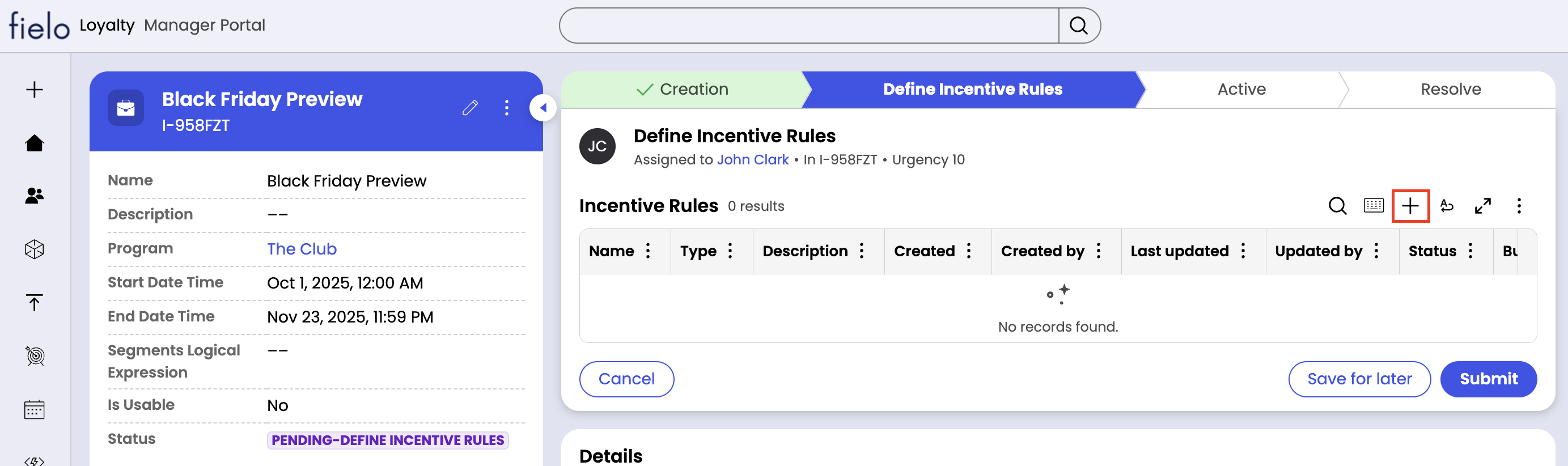
- Source Data: The data set corresponding to the behavior you want to incentivize, such as Sale or Event.
- Criteria: The criteria that the member’s behavior must meet in order for it to apply to the rule. Criteria are built upon attributes available on your source data. For example, if your rule only applies to sales over $50, the criterion will look something like
Net Amount greater than 50. - Criteria Logical Expression: Determines whether All criteria must match for the rule to be applied, or Any criterion can match.
- Type: No Competition rules always reward qualifying members, whilst Best Option rules only give a currency to a qualifying member if no other Best Option rule applies which would give the member more of that same currency. In the event two rules would give the member the same amount of currency, the one with the more generous expiration policy prevails. Instant rewards are always given regardless of rule type. If left unselected, “No Competition” is assumed.
Specify a Reward
Finally, you can specify what the rule will reward to qualifying members. No Competition rules can give currency and instant rewards, while Best Option rules can only give currency.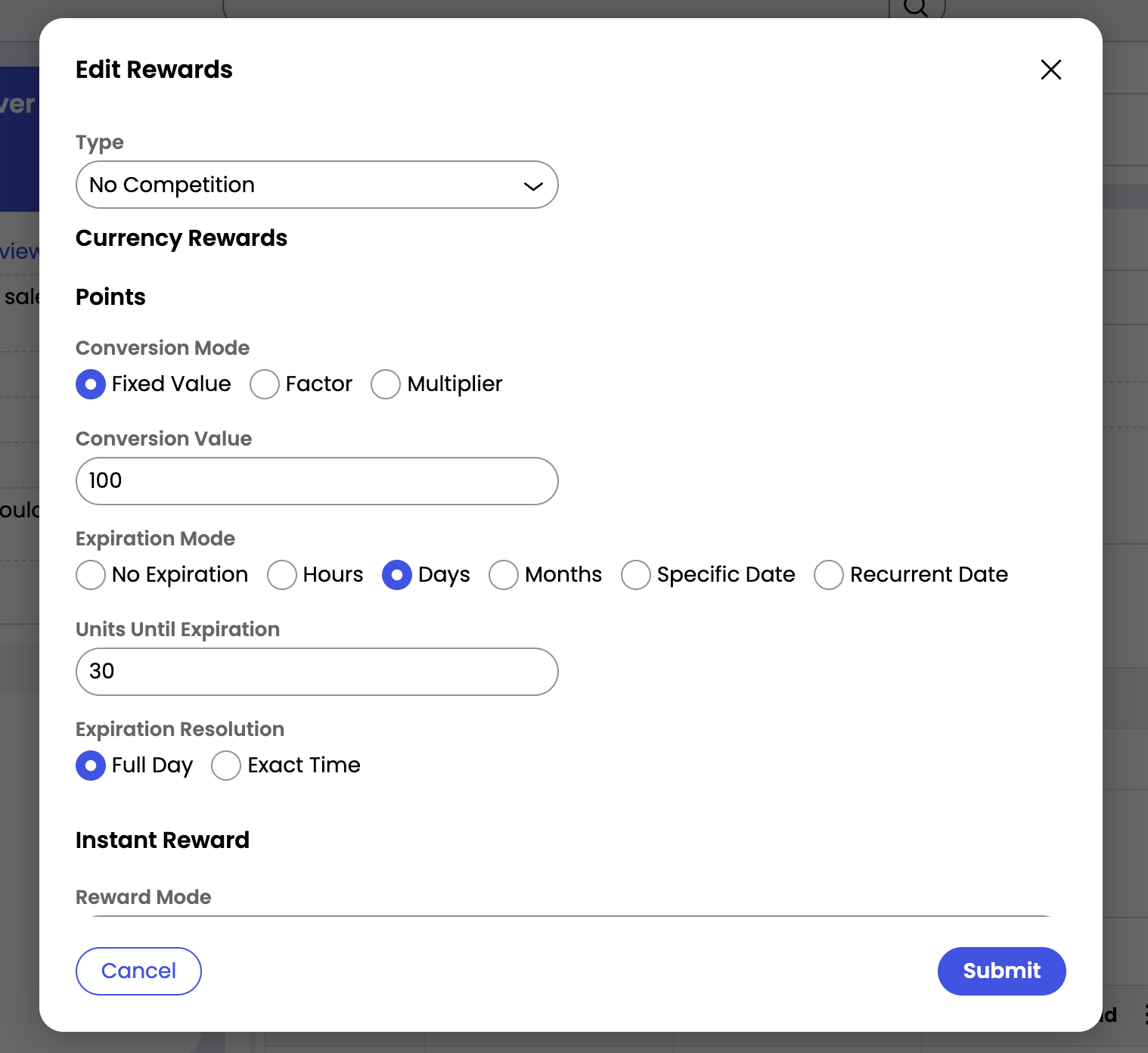
- Conversion Mode: Fixed Value means the amount given will be the same for all members, while Multiplier means the amount given will be a multiple of a numeric attribute of the incentivized activity and Divisor means the amount given will be a quotient.
- Conversion Value: If “Fixed Value” is selected, this is the amount of points to be given. If “Multiplier” is selected, this is the amount by which the Source Value Field will be multiplied in order to calculate the member’s reward. If “Divisor” is selected, this is the amount by which the Source Value Field will be divided in order to calculate the member’s reward.
- Source Value Field: If “Multiplier” or “Divisor” is selected, this is the attribute that will be multiplied or divided by in order to calculate the member’s reward. The attribute must be a numeric field from the source data.
- Expiration Mode: Currency can be set to expire in a number of Hours, Days or Months from the moment it was earned, on a Specific Date, or annually on a Recurring Date (e.g. every year on 1st Jan). It can also be set for No Expiration.
- Units Until Expiration: If “Hours”, “Days” or “Months” is selected, this is the number of hours, days or months members will have to use the currency they earn through this rule.
- Expiration Date Time: If “Specific Date” or “Recurring Date” is selected, this is the date (either specific or annual) that the currency given through this rule will expire.
- Expiration Resolution: Full Day means that, on the last day their currency is valid, members will have the entire day to use it, whilst Exact TIme means the currency will expire at the same time of day as it was earned.
- Reward Mode: Fixed Value means the reward given will be the same for all members, while Specified by Field means the reward will be indicated by an attribute of the incentivized activity.
- Reward: If “Fixed Value” is selected, this is the catalog reward that will be granted.
- Source Reward Field: If “Specified by Field” is selected, this is the attribute that will indicate the catalog reward to be granted.
Activate an Incentive
Once your rules are ready, you can activate your incentive from its detail page. Review the pending step(s) and click Submit.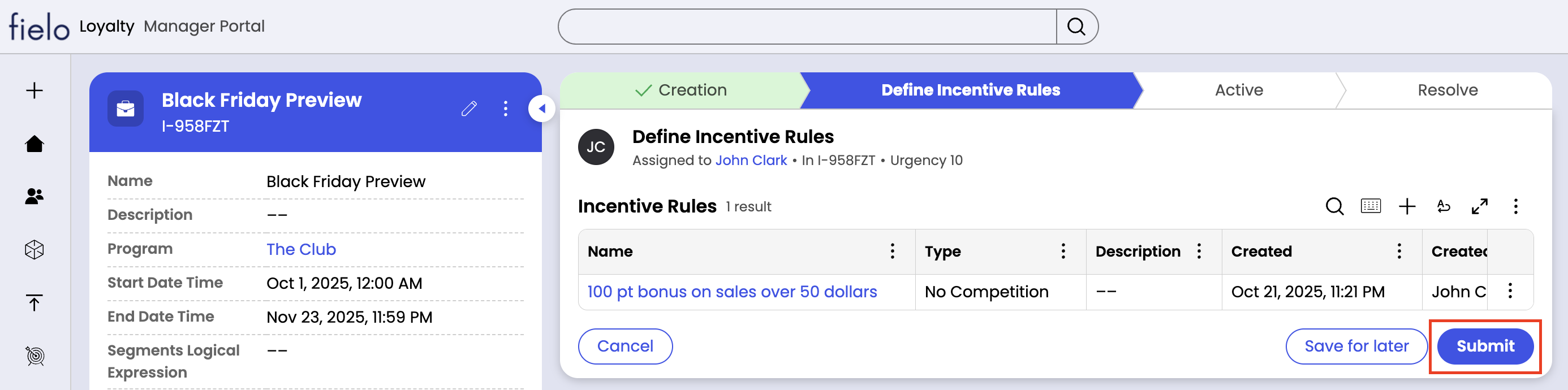
Statuses
Incentives can be in one of three statuses:- New: The incentive was created via AI and requires review prior to activation.
- Pending-Define Incentive Rules: The incentive is in the process of being built. It needs to be activated before the rules will begin processing.
- Open-Active: The incentive has been activated and its rules will process (within the timebox, if one is defined).
- Resolved-Inactive: The incentive has been deactivated and its rules will not process.
- New: The rule was created via AI and requires review prior to activation.
- Pending-Deploy: The rule is undergoing deployment.
- Open-Active: The rule is active and will process if its incentive is active and inside the timebox (if any).
- Resolved-Inactive: The rule has been deactivated and will not process.