

Add a Cap
To configure a cap, navigate to the Caps page and select Create Cap. In addition to a name and description, caps have the following attributes:- Suspension Mode (hours): Temporary means that, when a member is blocked due to exceeding a cap, the suspension will be automatically lifted after a defined number of hours, while Indefinite means that the member’s suspension will need to be removed administratively.
- Suspension Time: When the suspension mode is temporary, this is the amount of time (in hours) that the member will be blocked.
- Limit: Required. The number of activities a member can perform inside the measurement period before being blocked.
- Measurement Period (hours): The rolling period inside which the limit will be measured. For example, if the value is
5, members will be blocked if they exceed the limit by the number of scoped activities they’ve performed within the last 5 hours. If the measurement period is blank, the limit applies over the lifetime of the program.
Define a Scope
Once a cap has been created, you can set its scope. The scope defines the kind of activities that will fall under a given cap. Caps are scoped by Data Set.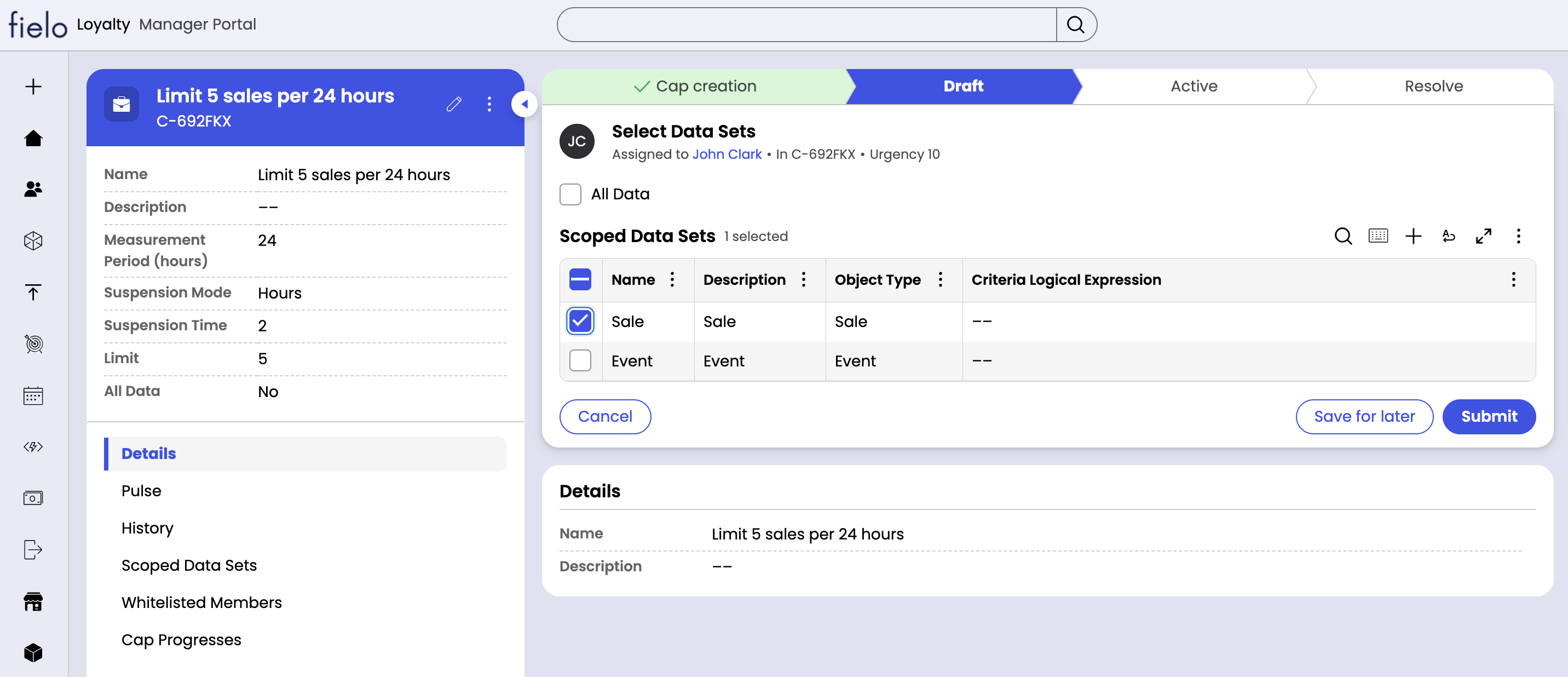
Whitelist
There may be a handful of members you wish to exclude from your cap. If this is the case, you can add them to the whitelist now or at any time in the future. Continue by selecting “Submit”.Activate a Cap
Once you’ve set the policies, defined a scope and, optionally, added members to the whitelist, you can go ahead and activate your cap.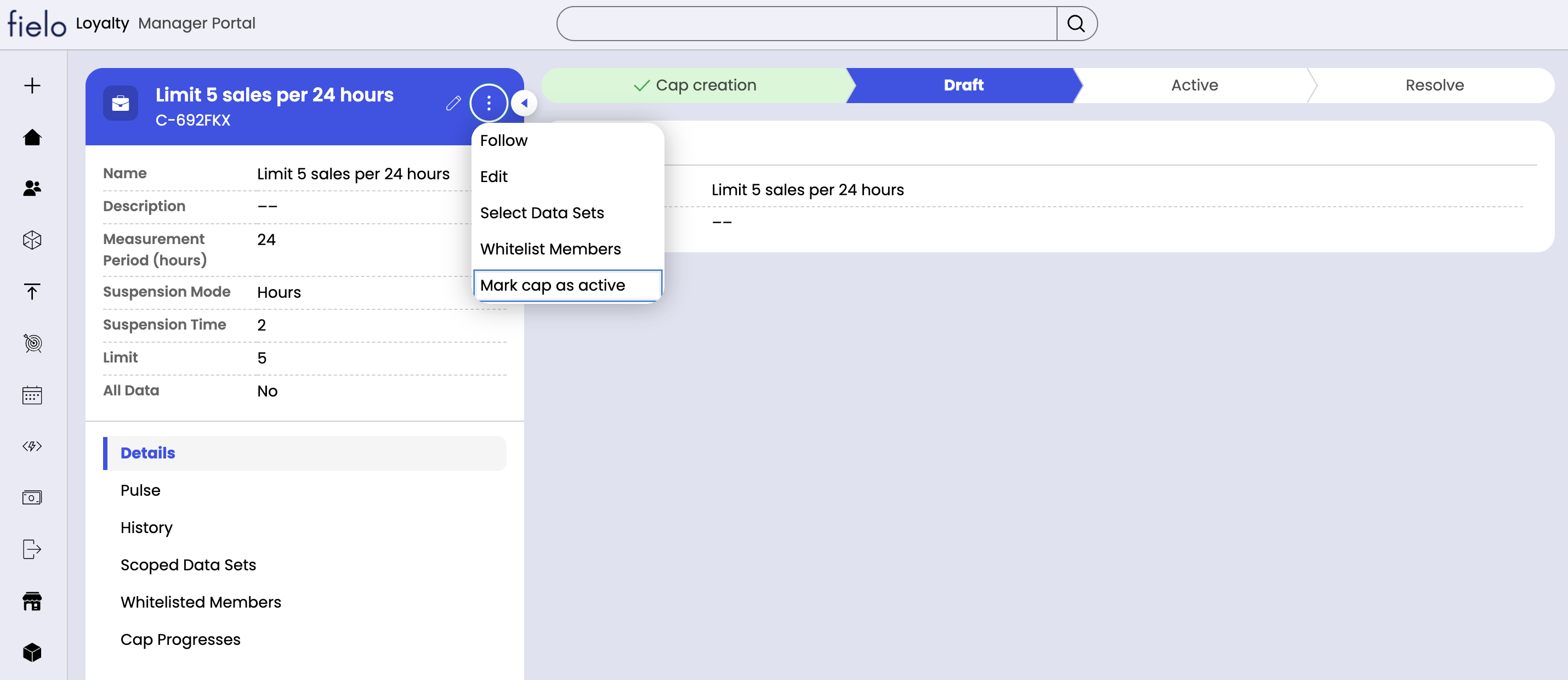
Statuses
Caps can be in one of three statuses:- Open-Draft: The cap is in the process of being built. It needs to be activated before it will start to be enforced.
- Open-Active: The cap has been activated and its policies will be enforced.
- Resolved-Inactive: The cap has been deactivated and its policies will not be enforced.